TL;DR
- OrgPulse is a remote MCP server. Claude or ChatGPT holds an OrgPulse token, never a Salesforce one, and every Salesforce call is made by a read-only integration user.
- The admin signs in once (OAuth web server flow with PKCE) to prove they own the org. OrgPulse does not keep that token. Daily checks use the JWT bearer flow with a certificate, so there is no stored password.
- The External Client App and a read-only permission set ship in a small managed package, because a local External Client App only works in the org it was created in.
- A generic Salesforce MCP answers when you ask. OrgPulse runs daily checks, alerts on expiry and resolution, keeps history, and uses a read-only integration user whose tools cannot write.
- The package cannot carry the app's access policy, so OrgPulse offers a setup assistant that makes exactly three changes with the admin's explicit consent. That is the only time it writes to an org.
- You can add it to Claude today as a custom connector. The ChatGPT app directory listing is waiting for approval; this post shows how I tested it in ChatGPT developer mode.
What You'll Learn
- Why I put the External Client App in a managed package instead of asking admins to click Allow on a connected app
- How to split "prove you own the org" from "run the checks" so the powerful token never sticks around
- What "user hasn't approved this consumer" means on a JWT bearer login and how to fix it without hand-editing App Policies
- How Claude and ChatGPT connect to a custom MCP server, and why ChatGPT uses Client ID Metadata Documents instead of dynamic client registration
- The mistakes from the first live run on 7 October 2026, so you can skip them in your own integration
The Problem
Most Salesforce admins I work with keep a mental list of things that quietly expire: a SAML certificate, a permission set assignment with an end date, a package licence, a scheduled job owned by someone who left. Then there are org limits and storage, which nobody looks at until something fails. And the question I get asked most often is some version of "why can this user see that field when the other one cannot?"
I built OrgPulse to answer those questions from Claude and ChatGPT in plain language. The hard part was not the questions. It was getting an AI client into a Salesforce org in a way I would be comfortable recommending to a client's security team.
The obvious shortcuts are all bad. Pasting a session id into a chat is out. Storing an admin's refresh token on a server means one breach exposes every org that ever connected. And the old pattern of "click Allow and a connected app appears in your org" is going away: Salesforce has been restricting uninstalled connected apps since September 2025 (users now need Approve Uninstalled Connected Apps or Use Any API Client to use one), and Salesforce is steering new integrations away from creating classic connected apps and towards External Client Apps. I covered the wider migration in Migrating Connected Apps to External Client Apps.
Common questions this article answers:
- How do I connect ChatGPT or Claude to Salesforce without giving it my credentials?
- How does an External Client App get into a customer org?
- What permissions does a read-only monitoring user actually need?
- Why does my JWT bearer login fail with "user hasn't approved this consumer"?
Quick Answer
Keep three identities separate. The AI assistant signs in to your MCP server, not to Salesforce, and gets a token scoped to your server only. The Salesforce admin signs in once with the web server flow and PKCE, which proves they own the org, and you throw that token away. All recurring reads run as a dedicated integration user over the JWT bearer flow, authorised by a certificate and a permission set that grants read access only.
Ship the External Client App inside a managed package so it exists in the customer's org, then set the app to admin pre-authorised users for a permission set assigned to the integration user. Send the JWT bearer request to the org's My Domain. If you want to save the admin the App Policies edit, ask for explicit consent, make only the changes you listed, and use the admin token for that one request.
The shape of the integration
Here is the whole thing in one paragraph, before the screenshots. Claude or ChatGPT talks to https://orgpulse.cloudcounsel.co.nz/mcp. That endpoint is protected by Clerk acting as an OAuth 2.1 authorisation server, which issues tokens with the scope orgpulse.read and an audience bound to the /mcp resource, so a token minted for OrgPulse is useless anywhere else. Behind the MCP server, OrgPulse calls Salesforce as the integration user. The admin's own credentials appear exactly twice: once to connect the org and, if they choose, once to approve the access setup. Neither token is stored. What OrgPulse does keep is the org id, the admin's user id, the org's URLs and the name you give it, plus short-lived access tokens for the integration user, cached encrypted.
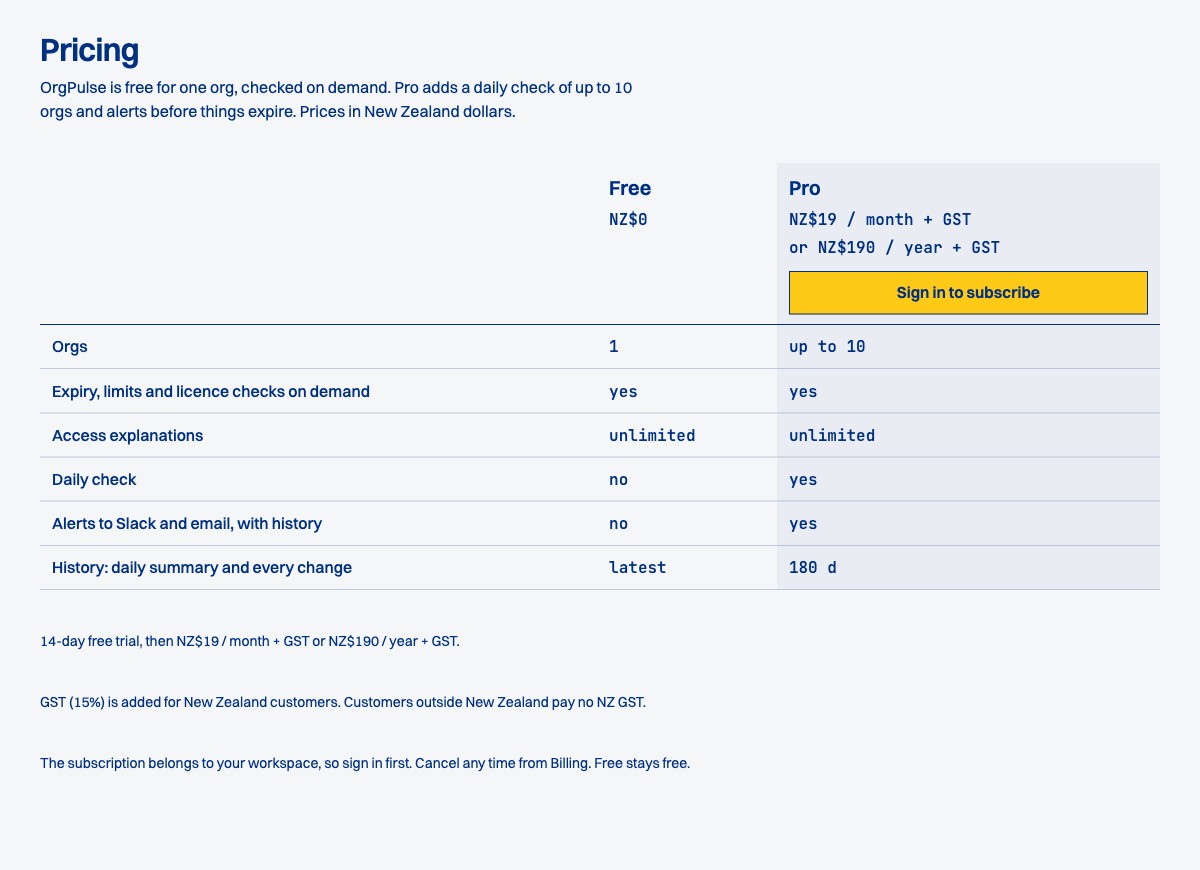
The free plan checks one org on demand, up to five times a day. Pro adds a daily check of up to 10 orgs (sandboxes count), alerts to Slack and email before things expire, and 180 days of history, for NZ$19 a month or NZ$190 a year plus GST, after a 14-day trial.
Why not just use a Salesforce MCP server?
A Salesforce MCP lets an assistant read your org when you ask. OrgPulse watches it when you don't, and tells you before something breaks. That is the whole difference, and it comes down to six things. I am describing what a generic Salesforce MCP server typically does, whether it is hosted or runs locally and gives the assistant raw API access. I am not comparing against any particular product.
- Always on. OrgPulse runs daily checks and sends Slack and email alerts when something crosses a threshold and again when it is resolved, deduplicated so you are not pinged twice. A generic MCP server only answers when someone asks, and nobody asks about the certificate that expires on a Saturday.
- It knows where expiry hides. Tooling-only objects, SAML and named credential certificates, permission set assignment expiries, licence end dates, scheduled job end times and API version retirements. It also prints a "Not checked" list. A model with raw access has to know all of that and write the queries every time, and it will not tell you what it missed.
- Access paths are computed, not guessed. The permission explainer works through profiles, permission sets, groups, the role hierarchy, sharing rules and org-wide defaults in code, then names the single change that flips the answer.
- Safe by construction. The integration user is dedicated and read-only, and the tools cannot write to Salesforce. A generic MCP server usually runs as a normal user, with that user's write access.
- It remembers. Snapshots, "new since last check" and fixed-on dates. A generic MCP server is stateless, so every question starts from zero.
- One call, one answer. A single tool call returns a precomputed result instead of a string of exploratory queries.
None of this is magic. Coverage depends on the integration user's licence, and OrgPulse says so in the "Not checked" list rather than reporting an empty result.
Step 1: Install the package first
The screenshots in Steps 1 to 6 are from the first live run on 7 October 2026. The OrgPulse interface has been restyled since, but the steps are the same.
The first thing an admin does is install the OrgPulse package, a 1GP managed package with the namespace orgdot. It contains the External Client App and one permission set, OrgPulse Monitor, which holds API Enabled, View Setup and Configuration, and View Roles. Nothing else. I install it for admins only, since the only user who needs the permission set is the integration user and the admin assigns it explicitly. The install links are on the OrgPulse connect page, for production or Developer Edition and for sandboxes, and the released package needs no installation key.
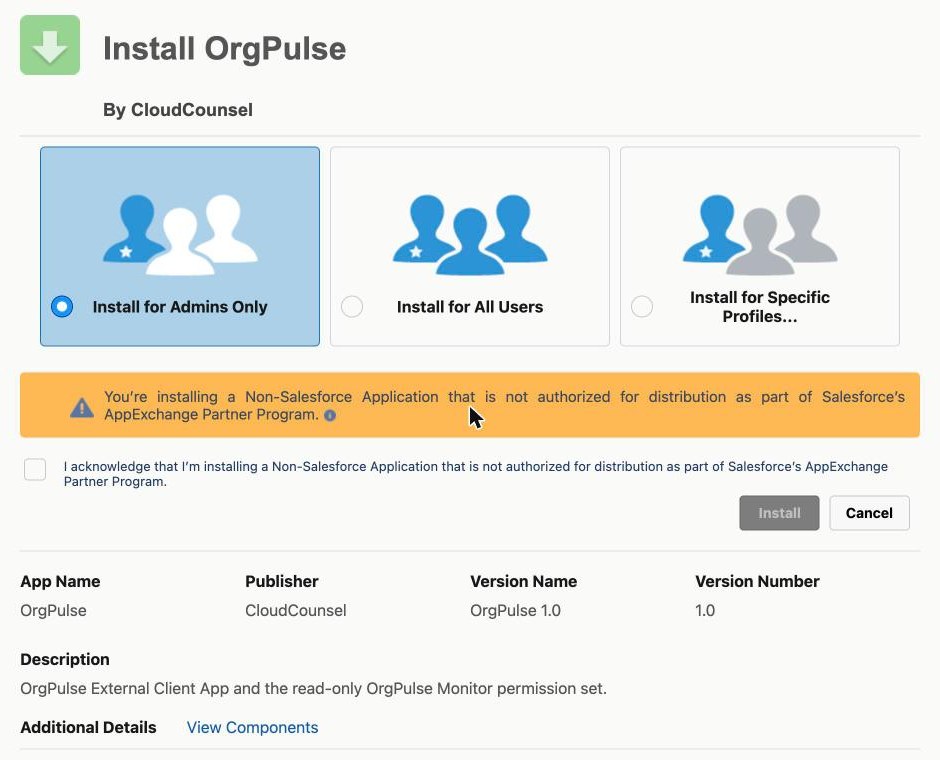
Salesforce shows a yellow warning on the install screen because OrgPulse is not distributed through AppExchange, and the admin has to tick the acknowledgement before Install is enabled. That is expected for a package installed from a direct link, and it is one more reason to look at the View Components list before you install anything.
Why a package at all? An External Client App created in my own org cannot be used for OAuth against yours. It only becomes usable in a customer org once it is installed there, and the supported way to get it there is a package. That turned out to be a feature: the app arrives as a visible, versioned thing in Installed Packages that the admin can inspect and uninstall, rather than an entry that appears in Connected Apps OAuth Usage because somebody clicked Allow.
The order matters. The first version of the flow put the admin sign-in before the install step, and it cannot work that way: until the package is installed, the org has never heard of the app, so the OAuth request has nothing to match. Install first, then sign in.
Step 2: The admin proves they own the org
Next the admin signs in with the OAuth web server flow and PKCE. They need View Setup and Configuration and Manage Users for what comes later. Salesforce shows its standard Allow Access screen for the packaged app.
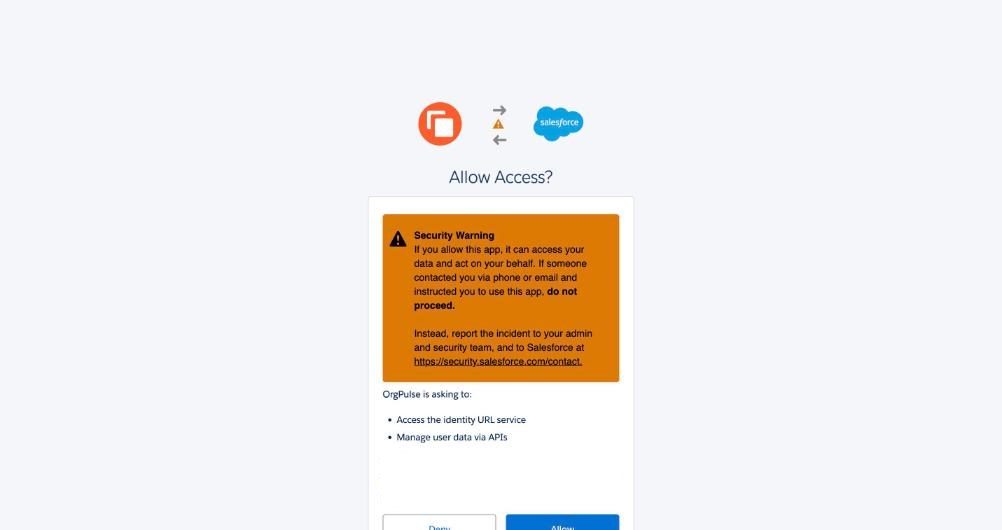
OrgPulse keeps the org id and the admin's user id from this sign-in. It does not keep the access token, and if Salesforce sends a refresh token, OrgPulse drops it. The connect page says that in one line, because "what do you store?" is the first question a security reviewer asks.
This is also where my first bug lived. The admin sign-in asked for the id scope as well as api, and the packaged app did not allow id. Salesforce answered invalid_scope, which is correct but does not tell you which side is wrong. The fix was to ask for api only. If you package an External Client App, check that the scopes your code requests are a subset of the scopes the app permits, because the subscriber cannot add one.
Step 3: Nominate a read-only integration user
Every check from now on runs as a separate user that the admin creates or picks, with the OrgPulse Monitor permission set. OrgPulse signs in as that user with the JWT bearer flow: it signs a short-lived assertion with a private key, and the packaged app holds the matching certificate. There is no password to rotate or leak, and the integration user can do nothing the permission set does not allow.
OrgPulse now also offers a quick start, where the checks run as the admin who signed in instead. It uses the same JWT bearer flow, just with the admin's username, and the setup step assigns the access permission set to the admin instead of an integration user. The connect page is blunt about it: "OrgPulse will read your org as you, an administrator. Fine for trying it; switch to a dedicated read-only user for ongoing use." It is fine for a first look, and I would not leave it that way. The tools still only read, but every check then runs with an administrator's access, which is exactly what the integration user exists to avoid.
When the admin nominates the user, OrgPulse runs a probe: a set of sign-in and read checks that tell you exactly what works before anything is scheduled. My first probe failed.
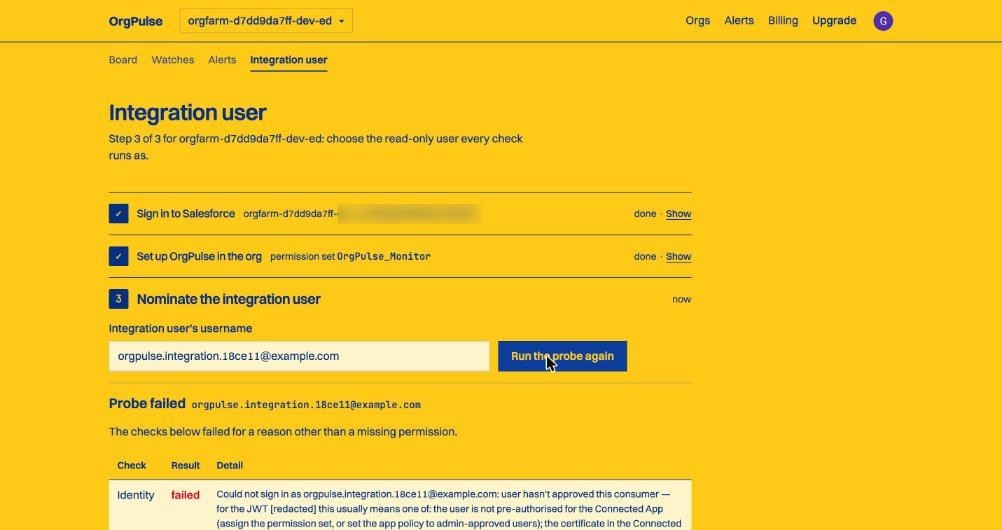
"User hasn't approved this consumer" on a JWT bearer login nearly always means the user is not pre-authorised for the app. Nobody clicks Allow in the JWT bearer flow, so Salesforce needs the app's policy set to admin approved users are pre-authorised, and the user needs a profile or permission set that is listed on the app. A package can ship the app and the permission set, but it cannot ship that policy. So after any install, someone has to open the app's policies in Setup and edit them by hand.
Two other things will produce failures here, and I hit one of them. A JWT bearer request for an installed External Client App has to go to the org's My Domain URL, not login.salesforce.com. And the certificate on the app has to match the key you sign the assertion with.
Step 4: Let OrgPulse set up its own access, with consent
Editing App Policies is a fiddly page with several settings that are easy to get wrong, and it is exactly where I would expect people to stall. So OrgPulse offers to do it, on two conditions: the admin ticks "I approve these changes", and then signs in to Salesforce again so Salesforce shows its own approval screen.
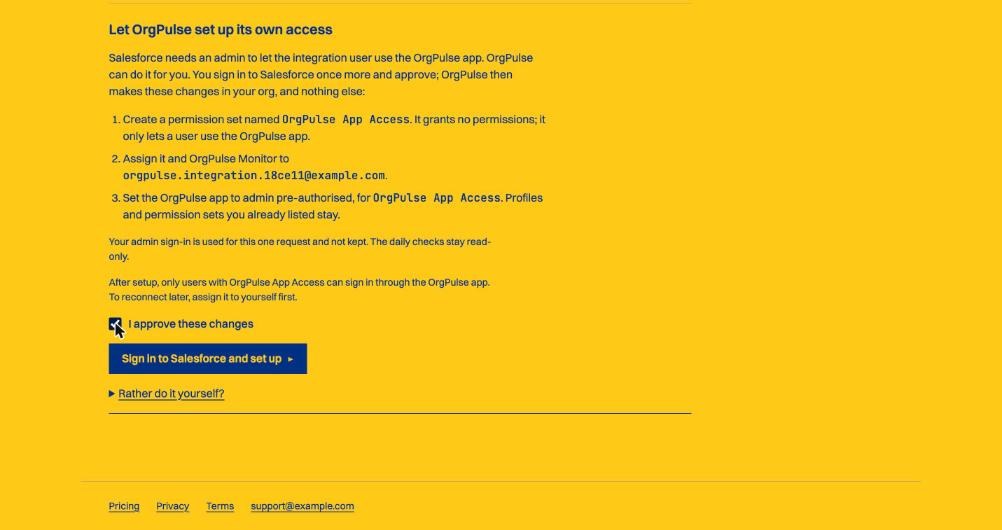
After that, OrgPulse makes exactly three changes and nothing else:
- Create an empty permission set named OrgPulse App Access. It grants no permissions; it only lets a user use the OrgPulse app.
- Assign it, and OrgPulse Monitor, to the integration user.
- Set the OrgPulse app to admin pre-authorised for OrgPulse App Access. Profiles and permission sets already listed stay.
The admin token is used for that one request and not kept. This is the only time OrgPulse writes to an org. The daily checks only read. If the admin would rather do it by hand, there is a "Rather do it yourself?" link with the same three steps written out. Setup also refuses to run if the integration user named is the admin who is signing in, because that would quietly turn the dedicated-user setup into a quick start.
I went back and forth on whether a monitoring product should ever write to an org. Where I landed: the write is going to happen either way, because the app does not work without it. The question is whether an admin does it from instructions or a tool does it after showing the exact list and getting a tick and a fresh sign-in. The second is easier to audit, and the empty permission set means access to the app is granted by something you can see in Setup and remove.
Step 5: The probe passes, and it is honest about gaps
With access in place, the probe passes. Identity, org limits and the Tooling API all work.
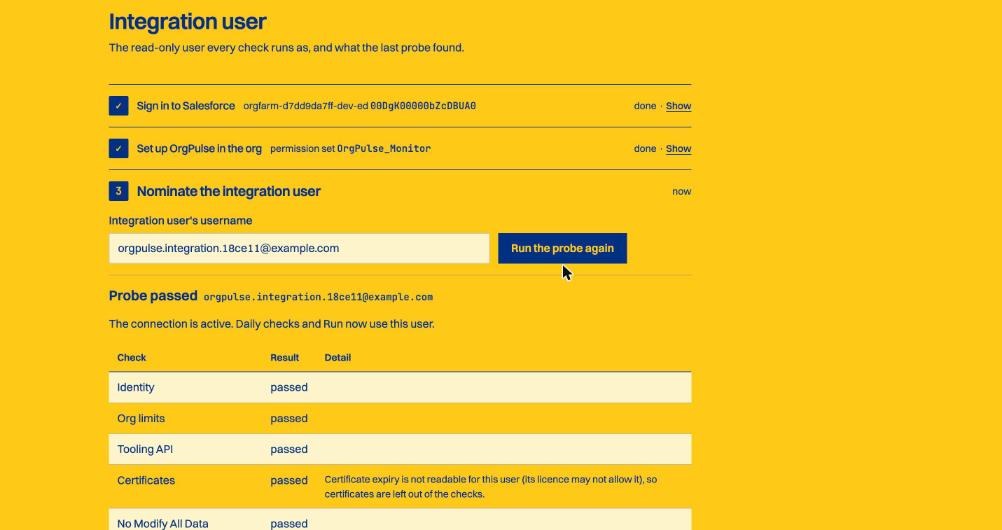
Look at the Certificates row. My integration user is on a Salesforce Platform licence, and certificate expiry is not readable for that licence. The original probe treated certificate reads as required, so on that user it blocked the whole connection. That was wrong. The packaged permission set deliberately holds only permissions every user licence accepts, so the product has to work with what that licence can read. On a Salesforce Platform user OrgPulse reads limits, licences, scheduled jobs, login history, password policy, SAML configuration and the whole permission explainer. It does not read certificate expiry. The probe now treats certificates as optional and says so in plain words instead of failing. It has since grown an optional permissions row as well, which reports whether the user has View All Data, View Event Log Files or Manage Users, and what each one would unlock.
I think this is the right default for anything that monitors an org. A check that cannot run should show up as "not checked, and here is why", never as a silent pass and never as a blocker for everything else.
Step 6: The first check
The board after the first run shows real numbers from the org. Nothing leaves in the next 60 days, active scratch orgs are at 33.3% and everything else is close to zero. The right-hand column lists what was not checked and which permission would unlock it.
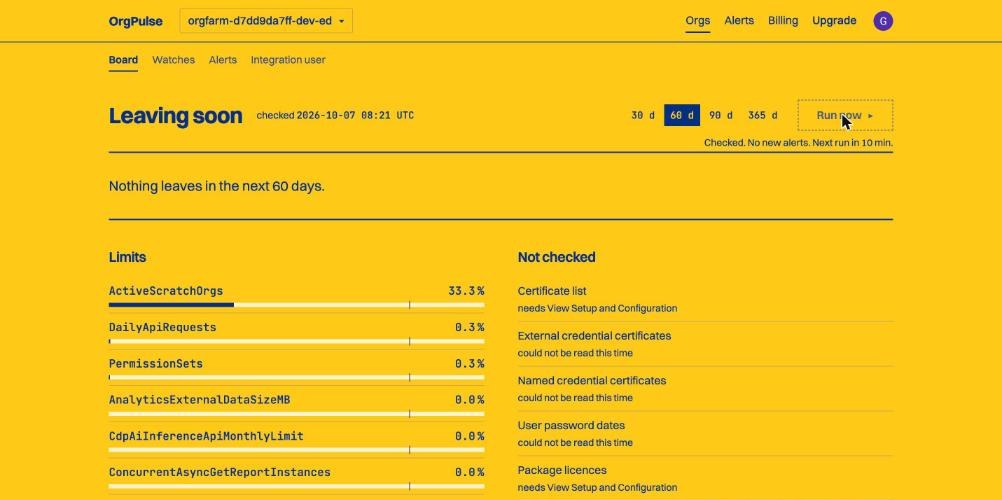
One more bug from the same day, for the Next.js crowd: the board page worked in development and broke in production because of a server and client component boundary that only the production build enforced. If your MCP server has a web front end, run a production build locally before you demo it.
Step 7: Add OrgPulse to Claude or ChatGPT
In Claude, open Settings, then Connectors, choose Add custom connector and paste https://orgpulse.cloudcounsel.co.nz/mcp. Sign in with the same OrgPulse account you connected the org with. That is the route that works for anyone today.
OrgPulse is waiting for approval in the ChatGPT app directory, and once it is listed you will find it under Apps. Before that, I tested it in ChatGPT with developer mode on, by adding a custom MCP server: a name, the server URL, and OAuth as the authentication method. ChatGPT then reads the server's metadata and works out the rest.
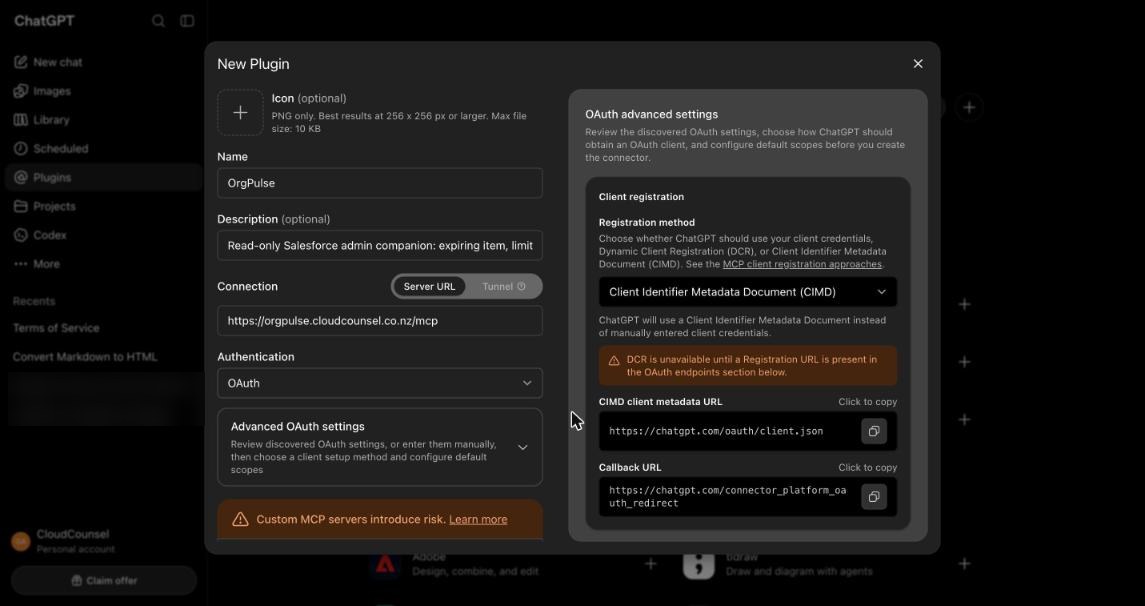
The part I found most interesting is client registration. ChatGPT offers three ways to get an OAuth client: your own client credentials, dynamic client registration, or a Client ID Metadata Document (CIMD). With CIMD the client id is a URL, here https://chatgpt.com/oauth/client.json, and the authorisation server fetches that document to learn the client's name and redirect URIs. No registration endpoint, no per-tenant client to clean up later. The MCP authorisation specification recommends CIMD support, and Clerk supports it, so OrgPulse does not offer dynamic client registration at all. ChatGPT picked CIMD on its own.
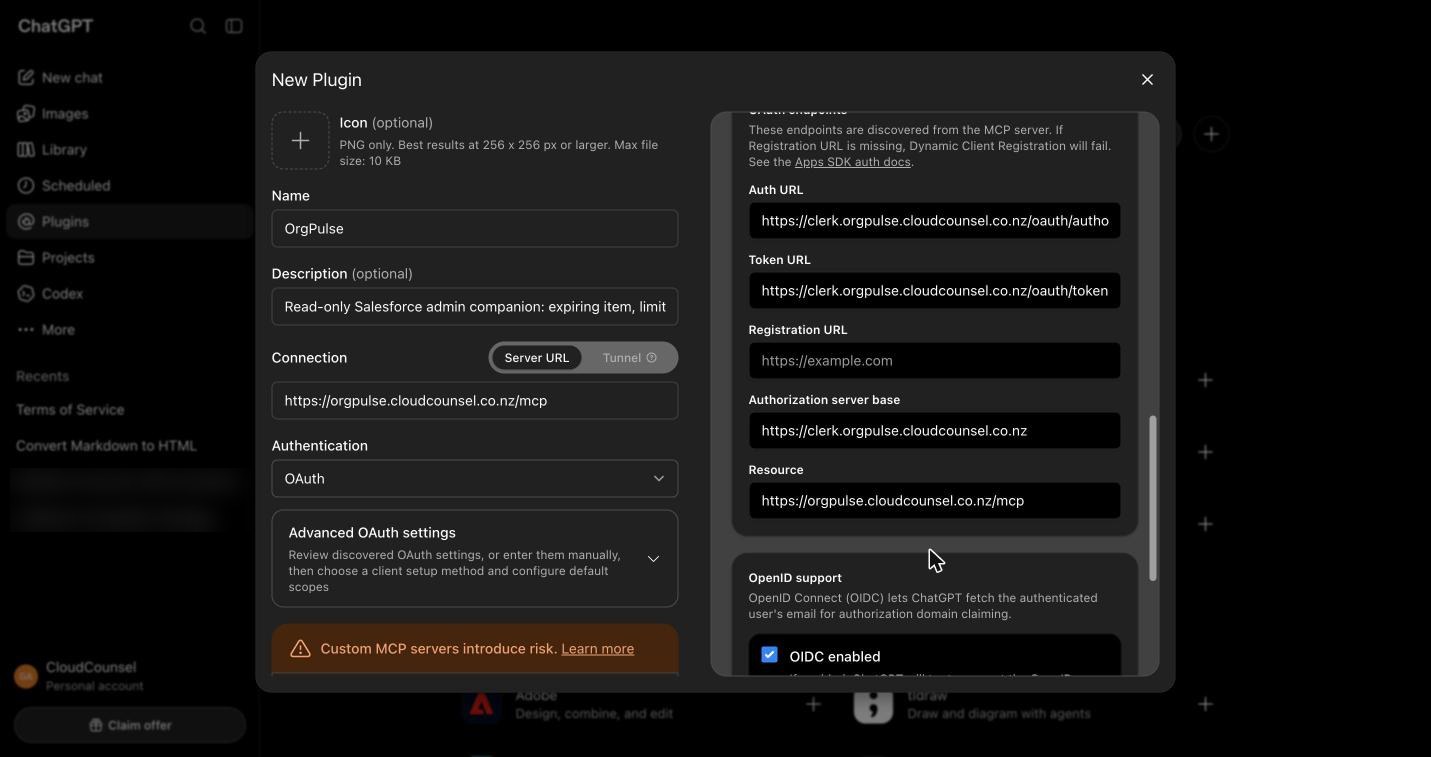
All the endpoints were discovered automatically. The empty registration URL is intentional. The resource field is the /mcp endpoint, which is what the token's audience is bound to.
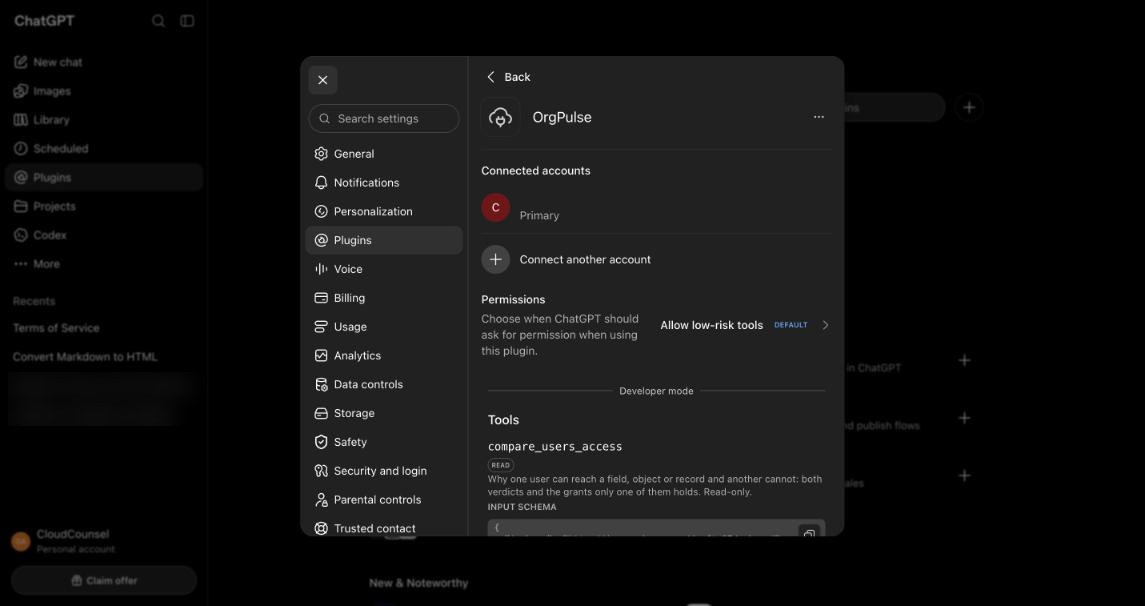
After sign-in, the assistant lists the tools the server exposes. In ChatGPT they appear with a READ badge on the read-only ones. There are nine, and every one reads Salesforce only; the one tool not marked read-only, configure_watch, changes OrgPulse's own alert settings, never the org.
Step 8: Ask a real question
I asked ChatGPT: "what is expiring in my Salesforce org in the next 60 days, and how close am I to any org limits?" The same question works in Claude.
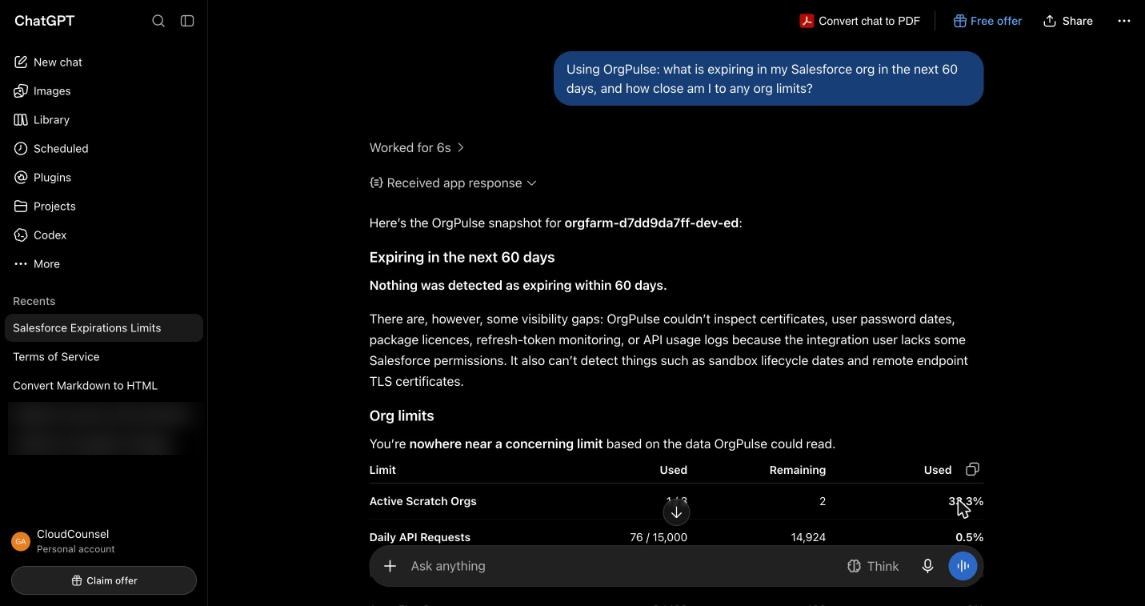
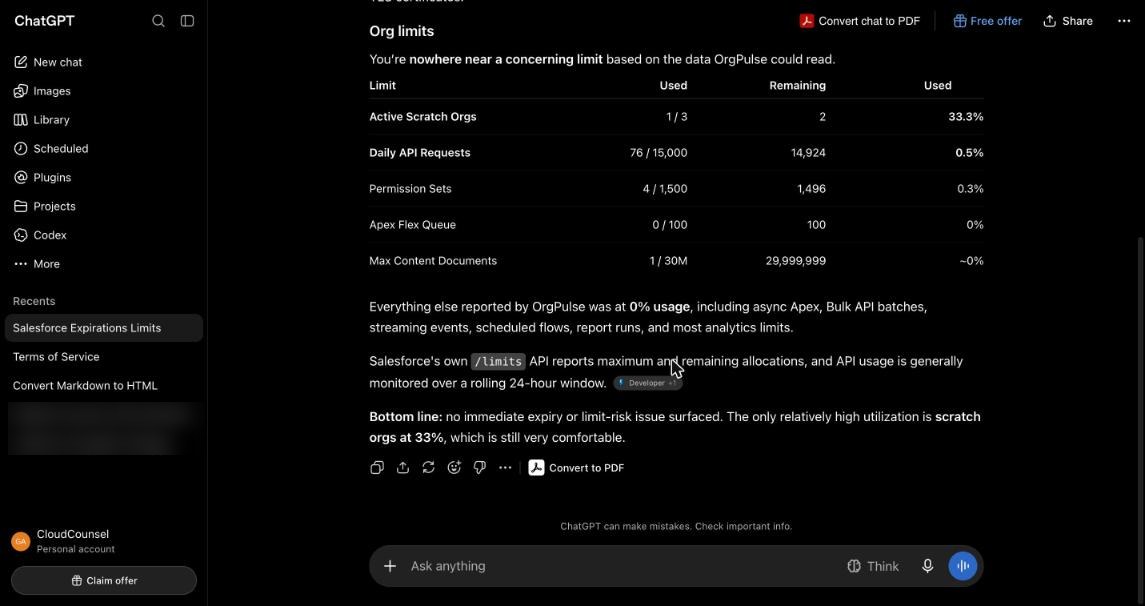
The answer matched the board. Nothing expiring in 60 days, and it repeated the visibility gaps rather than glossing over them: certificates, user password dates, package licences and refresh-token monitoring were not readable with the permissions the integration user had. That part matters to me more than the headline. An assistant that says "nothing to worry about" when it could not look is worse than no assistant.
What I would tell another builder
- Put the External Client App in a package from day one. You cannot test cross-org OAuth properly without it.
- Request only the OAuth scopes the packaged app permits.
invalid_scopeis the symptom. - Install, then sign in. The org needs to know the app before the OAuth request.
- Send JWT bearer requests for installed apps to the org's My Domain.
- Design the permission set for the most restrictive licence you expect, and make every check that needs more optional and visible.
- Run a production build of your front end before anyone sees it.
Frequently Asked Questions
Q: Do ChatGPT or Claude get access to my Salesforce credentials?
A: No. The assistant signs in to OrgPulse through Clerk and receives a token with the scope orgpulse.read, bound to the OrgPulse /mcp resource. It never sees a Salesforce token. OrgPulse calls Salesforce as your read-only integration user using the JWT bearer flow, which uses a certificate rather than a stored password.
Q: Why does OrgPulse need a managed package instead of a connected app?
A: An External Client App only works for OAuth in a customer org once it is installed there, and a package is how it gets installed. Salesforce has also been restricting classic connected apps that appear in an org just because a user clicked Allow, and it is steering new integrations towards External Client Apps instead. The package also makes the app visible in Installed Packages, where an admin can inspect or uninstall it.
Q: What does "user hasn't approved this consumer" mean on a JWT bearer login?
A: It usually means the user is not pre-authorised for the app. In the JWT bearer flow nobody clicks Allow, so the app's policy must be set to admin approved users are pre-authorised and the user needs a profile or permission set listed on the app. Also check that you are sending the request to the org's My Domain and that the certificate on the app matches your signing key.
Q: Why not just use a Salesforce MCP server with ChatGPT or Claude?
A: A generic Salesforce MCP server typically gives the assistant raw API access and only answers when asked. It is stateless, usually runs as a user with write access, and leaves the model to know which queries find things like Tooling-only certificates or assignment expiries. OrgPulse checks daily, alerts you before something breaks, keeps snapshots, computes access paths in code, uses a read-only integration user, and lists what it did not check.
Q: Does OrgPulse ever change anything in my org?
A: Only once, and only if you approve it. The setup assistant creates an empty permission set called OrgPulse App Access, assigns it and OrgPulse Monitor to the integration user, and sets the app to admin pre-authorised for that permission set. You tick "I approve these changes" and sign in again first. The admin token is used for that one request and not kept. You can make the same three changes by hand instead. If you choose quick start, the setup assigns the access permission set to you, and the checks run with your own permissions until you switch to an integration user.
Q: Which user licence should the integration user have?
A: The packaged permission set only holds permissions every user licence accepts, so any licence works. On a Salesforce Platform licence OrgPulse reads limits, licences, scheduled jobs, login history, password policy, SAML configuration and the permission explainer, but not certificate expiry. The probe and the board tell you which checks were skipped and why.
Q: How does ChatGPT register as an OAuth client without dynamic client registration?
A: It uses a Client ID Metadata Document. The client id is a URL, https://chatgpt.com/oauth/client.json, and the authorisation server fetches that document to learn the client's name and redirect URIs. There is no registration endpoint, and ChatGPT discovers this from the server's OAuth metadata.
Key Takeaways
- Keep the AI client, the admin and the integration user as three separate identities, and let only the integration user touch Salesforce on a schedule.
- Use the admin's sign-in to prove ownership, then discard the token.
- Ship the External Client App and a minimal permission set in a managed package; the subscriber cannot add scopes or policies the package lacks.
- "User hasn't approved this consumer" on JWT bearer is a pre-authorisation problem, and the package cannot fix it for you.
- If a tool writes to an org, list the exact changes, get explicit consent and a fresh sign-in, and do nothing else.
- Treat checks that a licence cannot run as visible gaps, not failures and not silent passes.
What's Next?
Recommended reading:
- Migrating Connected Apps to External Client Apps
- Governing Third-Party MCP Servers in Agentforce
- Which of Your Connected Apps Use Less Than They're Granted?
- Agentforce Agent User Least Privilege: What the Wizard Grants
Action items:
- List every integration in your org that authenticates as a real admin, and pick one to move to a dedicated integration user on JWT bearer.
- Check which of your connected apps are uninstalled and who holds Approve Uninstalled Connected Apps or Use Any API Client.
- If you want to try OrgPulse, the free plan checks one org on demand at orgpulse.cloudcounsel.co.nz, and you can add it to Claude as a custom connector today.
Resources & References
- Prepare for Connected App Usage Restriction (Salesforce release notes)
- Get Ready: Changes to Connected App Usage Restrictions (Salesforce Admins blog)
- Model Context Protocol: Authorization specification
- OAuth Client ID Metadata Document (IETF draft)
- Salesforce Help: External Client Apps, and the OAuth 2.0 JWT Bearer Flow for server-to-server integration
- OrgPulse
Responses
Checking your session.
Loading responses.