Part of the Salesforce Admin Git & sf CLI series. Articles are standalone; read in any order. Foundation: Why Version Control · Environment Setup · Connect Your Org · Git Basics · Deploying Metadata
TL;DR
- One file in your repository turns on the check. Every time a merge request into
mainis opened or updated, GitHub runs a dry-run deploy against a validation sandbox. - The check runs on what
mainwould look like after the merge, so it also catches a broken conflict resolution or a field a colleague deleted. - Use
sf project deploy start --dry-run --test-level RunLocalTests.sf project deploy validateis meant for production, and a sandbox runs no Apex tests unless you ask for them. - Log in with the JWT bearer flow and an External Client App. No password is stored, and new connected apps are now disabled by default.
- Make the check required so the merge button stays disabled until it passes.
What You'll Learn
- What an automatic check on a merge request does, and what it does not do
- How to set up a CI user, a certificate and an External Client App in your validation sandbox
- How to test the login on your own machine before GitHub ever tries it
- The complete workflow file, line by line
- How to make the check required before anyone can merge
- What to do when the check fails, step by step
The Problem
In the merge conflicts guide, the last step before pushing was a dry-run deploy against a sandbox. That step catches a bad resolution before your reviewer does. It also depends on someone remembering to run it, on the right branch, against the right sandbox, every time.
People forget. A reviewer approves a merge request that looked fine in the diff, it merges, and the first time anyone learns the Flow references a field that no longer exists is the production deploy on release night.
The fix is to make the check automatic. GitHub can run a few commands on its own machines every time a merge request changes, and show the result on the merge request itself. If the metadata would not deploy, the merge button stays disabled. Nobody has to remember anything.
This sounds like a developer's job, but it comes down to one text file and about half an hour of Setup work, and every step is below.
Common questions this article answers:
- How do I make GitHub check my Salesforce changes before they can be merged?
- Should I use
sf project deploy validateor--dry-runfor this? - How does GitHub log in to my sandbox without storing a password?
Quick Answer
You need four things, set up once:
- A CI user in a sandbox you keep for validation, with the System Administrator profile, so your Apex tests run the way they do for you.
- A certificate and private key. The certificate goes into Salesforce; the private key goes into GitHub as a secret.
- An External Client App in the sandbox with the JWT bearer flow turned on and the CI user pre-authorized.
- A workflow file at
.github/workflows/validate.ymlthat logs in and runs:
sf project deploy start --source-dir force-app --target-org validate --dry-run --test-level RunLocalTests --wait 45
Then, in GitHub, make that check required on main. Here is what happens on every merge request once it is in place:
A check on every merge request
Nobody has to remember to validate. Opening or updating the merge request starts the check, and its result decides whether the merge button works.
Red hops are where the check fails and the merge is blocked.
What the Check Does, and What It Does Not
It does: take your branch, merge it with the latest main, and ask the validation sandbox whether that result would deploy. Salesforce compiles every component, checks every reference, runs your Apex tests and then rolls everything back. sf CLI's help describes --dry-run as "Validate deploy and run Apex tests but don't save to the org."
It does not: deploy anything. The sandbox is unchanged afterwards and production is never touched. Deploying to production stays a separate, deliberate step, as in Deploying Metadata with sf CLI.
Why not sf project deploy validate? It sounds like the right command, but its own help says: "Don't use this command on sandboxes; the command is intended to be used on production orgs. By default, sandboxes don't run tests during a deploy." The same help recommends sf project deploy start --dry-run --test-level RunLocalTests for a sandbox. Keep validate for the production quick-deploy workflow.
Why the test level matters. In a sandbox, the default test level for a deploy is NoTestRun. Without --test-level RunLocalTests, the check would pass a change that breaks every Apex test in the org.
Before You Start
- A GitHub repository holding your Salesforce project, set up as in the earlier parts of this series, with metadata under
force-app. - A validation sandbox. Ideally one used only for this check, so nobody's half-finished work in it makes the check fail. A Developer sandbox is enough if your metadata fits.
- Admin access to that sandbox, to create a user and an External Client App.
- A free Salesforce user licence in the sandbox for the CI user. A Salesforce Platform licence is not enough (Step 1 explains why).
- sf CLI on your machine, from Environment Setup, to test the login before GitHub uses it.
- OpenSSL, to create the certificate. On macOS and Linux it is already installed. On Windows, use Git Bash, which came with Git for Windows.
Throughout this guide, the sandbox is called validate and its address is https://yourcompany--validate.sandbox.my.salesforce.com. Replace both with yours. You can find the address in the sandbox under Setup → My Domain.
Step 1: Create the CI User
The workflow logs in as a user, and that user should be a dedicated machine account. If it were you, the check would break the day you leave or change your password policy, and every deploy would look like your work in the audit trail.
Give it the System Administrator profile. That sounds like more access than a check needs, and it is the most common surprise in this setup: Apex tests run as the user doing the deploy. I set this up first with a minimal user holding only the deploy permissions. The login worked, the metadata validated, and then 9 of the org's 31 Apex tests failed with errors such as "Access to entity 'Case' denied" and "Field is not writeable: User.ProfileId". The same dry-run as an administrator passed all 31. Nothing was wrong with the change; the tests assumed an administrator was running them, as most tests written in a sandbox do.
In a sandbox that exists only to run this check, an administrator CI user is the practical choice: the tests behave the way they do for the people who wrote them. It needs a full Salesforce user licence, because a Salesforce Platform licence does not offer the System Administrator profile. If every Salesforce licence is in use, free one before you start. A CI user that deploys to production is a different decision; deployable permission sets for a delivery team covers how to scope that one.
Create the user. In the validation sandbox:
- Go to Setup → Users → New User.
- Fill in First Name
GitHuband Last NameCI. - Set User License to Salesforce, then set Profile to System Administrator.
- Enter an Email your team monitors, so you see security emails. When you leave the Email field, Salesforce copies the address into Username. Clear that and type a username such as
github-ci@yourcompany.com.validate. Usernames must be unique across all Salesforce orgs, so the sandbox suffix helps. - Set Nickname to
github-ci. If Salesforce reports a duplicate nickname, pick another. - Untick Generate new password and notify user immediately. The CI user never logs in with a password.
- Untick any feature licences the form has ticked, such as Salesforce CRM Content User. A CI user needs none of them, and if they have run out the save fails with a licence-limit error. If the save fails for another reason, check the box again: it ticks itself again when the page reloads.
- Click Save, and note the username. You will need it twice.
Create a permission set to mark the user. It holds no permissions. Its only job is to name the CI user in the External Client App in Step 3, so that only this user, and not every administrator, is pre-authorized.
- Go to Setup → Permission Sets → New.
- Enter Label
GitHub CI. API Name fills itself in. Leave License as --None-- and click Save. - Click Manage Assignments → Add Assignment, tick the CI user and click Next. Leave No expiration date selected and click Assign.
Step 2: Create a Certificate and Private Key
The runner proves who it is by signing a token with a private key. Salesforce checks the signature against the matching certificate. You create both with one command.
Open a terminal (Git Bash on Windows), go to a folder outside your project so the key can never be committed by accident, and run:
mkdir -p ~/salesforce-ci-keys
cd ~/salesforce-ci-keys
openssl req -x509 -newkey rsa:2048 -nodes -keyout server.key -out server.crt -days 365 -subj "/CN=github-ci"
You now have two files:
| File | What it is | Where it goes |
|---|---|---|
server.crt |
The certificate, safe to share | Uploaded to the External Client App in Step 3 |
server.key |
The private key, a secret | Stored in GitHub as a secret in Step 5, and nowhere else |
-days 365 means the certificate expires in a year. Put a reminder in your calendar for 11 months from today. When it expires, the check fails at the login step.
Step 3: Create the External Client App
An External Client App is how Salesforce lets an outside system log in through OAuth. The sf CLI documentation says plainly that "you're required to create an external client app when authorizing the org with the org login jwt command". Older guides use a connected app instead, but creating new connected apps is now disabled by default.
In the validation sandbox:
- Go to Setup, type
External Client Appin Quick Find, click External Client App Manager, then New External Client App. - Under Basic Information, enter External Client App Name
GitHub CI(the API Name fills itself in asGitHub_CI) and a Contact Email. Leave Distribution State as Local. - Expand API (Enable OAuth Settings) and tick Enable OAuth. Under App Settings:
- Callback URL:
http://localhost:1717/OauthRedirect(the JWT flow does not use it, but the field is required) - OAuth Scopes: move Manage user data via APIs (api), Manage user data via Web browsers (web) and Perform requests at any time (refresh_token, offline_access) to the selected list
- Callback URL:
- Under Flow Enablement, tick Enable JWT Bearer Flow. A Certificate Upload field appears. Click Upload Files and choose
server.crtfrom Step 2. - Leave the Security section as it is, and click Create.
- On the app's page, open the Policies tab and click Edit. Under OAuth Policies → Plugin Policies, change Permitted Users from All users can self-authorize to Admin approved users are pre-authorized. A Confirm permitted user policy dialog warns that "Enabling this option will result in all users currently using this app being denied access." Click OK.
- Select Profiles and Select Permission Sets lists now appear under App Policies. Move
GitHub CIinto the selected permission sets, and click Save. - Open the Settings tab, and under OAuth Settings → App Settings click Consumer Key and Secret. A new tab opens asking you to verify your identity with a code Salesforce emails to you. Enter the code, then copy the Consumer Key. This flow uses only the key, so you can ignore the secret.
Setup screens move between releases. If a label above differs from what you see, the reference is Salesforce's Create an External Client App for the JWT flow page.
Step 4: Test the Login on Your Own Machine
Before giving anything to GitHub, prove the login works from your machine. If it fails here, it will fail in GitHub too, and here the error is easier to read.
sf org login jwt \
  --client-id PASTE_THE_CONSUMER_KEY_HERE \
  --jwt-key-file ~/salesforce-ci-keys/server.key \
  --username github-ci@yourcompany.com.validate \
  --instance-url https://yourcompany--validate.sandbox.my.salesforce.com \
  --alias validate-ci-test
On Windows, put the command on one line and leave out the \ characters.
A successful login prints Successfully authorized github-ci@yourcompany.com.validate with org ID followed by the sandbox's org ID. Confirm the user it logged in as, and check that Connected Status says Connected:
sf org display --target-org validate-ci-test
Then run the exact check the workflow will run, from your project folder:
sf project deploy start --source-dir force-app --target-org validate-ci-test --dry-run --test-level RunLocalTests --wait 45
If the output shows Status: Succeeded and the Test Results Summary shows Failing: 0, your setup is right. The last line says Dry-run complete. either way, so read the status, not the last line. If the login fails, the Troubleshooting section covers each error.
When you are done, remove the test login from your machine:
sf org logout --target-org validate-ci-test --no-prompt
Step 5: Store the Secrets in GitHub
The workflow needs three values. None of them go in the workflow file, because anyone who can read the repository can read that file.
In your repository on GitHub, go to Settings → Secrets and variables → Actions → New repository secret. Enter the Name and the Secret, click Add secret, and repeat for each of these:
| Name | Value |
|---|---|
SF_CLIENT_ID |
The Consumer Key from Step 3 |
SF_USERNAME |
The CI user's username from Step 1 |
SF_JWT_KEY |
The entire contents of server.key |
For SF_JWT_KEY, copy the whole file, including the first line (-----BEGIN PRIVATE KEY-----) and the last line (-----END PRIVATE KEY-----). A key pasted without them fails at the login step.
To copy the key on macOS, run pbcopy < ~/salesforce-ci-keys/server.key and paste. On Windows in Git Bash, run cat ~/salesforce-ci-keys/server.key | clip. On Linux, open the file in a text editor and copy all of it.
Once saved, GitHub never shows a secret again, not even to you, and it masks secret values in job logs. You will see *** wherever the username would appear, as in Successfully authorized *** with org ID. Now move server.key somewhere safe, such as your team's password manager, and delete the copy in ~/salesforce-ci-keys. GitHub has the only working copy it needs.
Step 6: Add the Workflow File
In your project, create a folder called .github, inside it a folder called workflows, and inside that a file called validate.yml. The leading dot in .github matters. In VS Code, right-click in the Explorer, choose New File, and type the whole path .github/workflows/validate.yml; VS Code creates the folders for you.
Paste this into the file, and change the --instance-url line to your sandbox's address:
name: Validate Salesforce changes

on:
  pull_request:
    branches: [main]

jobs:
  validate:
    runs-on: ubuntu-latest
    timeout-minutes: 60
    steps:
      - name: Check out the merge request
        uses: actions/checkout@v7

      - name: Set up Node.js
        uses: actions/setup-node@v7
        with:
          node-version: 22

      - name: Install Salesforce CLI
        run: npm install @salesforce/cli --global

      - name: Log in to the validation sandbox
        env:
          SF_JWT_KEY: ${{ secrets.SF_JWT_KEY }}
        run: |
          printf '%s\n' "$SF_JWT_KEY" > server.key
          sf org login jwt \
            --client-id "${{ secrets.SF_CLIENT_ID }}" \
            --jwt-key-file server.key \
            --username "${{ secrets.SF_USERNAME }}" \
            --instance-url https://yourcompany--validate.sandbox.my.salesforce.com \
            --alias validate
          rm server.key

      - name: Validate the changes
        run: |
          sf project deploy start \
            --source-dir force-app \
            --target-org validate \
            --dry-run \
            --test-level RunLocalTests \
            --wait 45
What each part does:
| Lines | What they do |
|---|---|
on: pull_request: branches: [main] |
Run whenever a merge request into main is opened, or gets a new commit |
jobs: validate: |
One job, called validate. This is the name you make required in Step 7 |
runs-on: ubuntu-latest |
Run on a fresh Linux machine that GitHub provides and throws away afterwards |
timeout-minutes: 60 |
Stop the whole job if it runs for more than an hour |
actions/checkout@v7 |
Copy the repository onto the machine. For a merge request, this is your branch already merged with the latest main |
actions/setup-node@v7 with node-version: 22 |
Install Node.js, which sf CLI runs on. Current sf CLI versions need Node 22 or later |
npm install @salesforce/cli --global |
Install sf CLI, the method Salesforce recommends for CI |
printf ... > server.key |
Write the private key from the secret into a file for the login, then rm server.key deletes it |
sf org login jwt ... |
The same login you tested in Step 4, using the secrets |
sf project deploy start ... --dry-run |
The check itself. It exits with code 0 if the deploy would succeed and 1 if it would fail, which is what turns the check green or red |
--wait 45 |
Wait up to 45 minutes for the sandbox to finish |
Save the file, then commit and push it on a branch and open a merge request, exactly as in the org-dependent packages workflow:
git checkout -b add-validation-check
git add .github/workflows/validate.yml
git commit -m "Validate merge requests against the validation sandbox"
git push -u origin add-validation-check
Open the merge request on GitHub. Within a few seconds a check called Validate Salesforce changes / validate (pull_request) appears at the bottom with a yellow dot while it runs. Click Details to watch each step. The first run is the real test of everything above.
Step 7: Make the Check Required
Until now, a failed check is a warning that a reviewer can ignore. Making it required turns it into a rule.
- In your repository, go to Settings, click Rulesets in the left menu, then New ruleset → New branch ruleset.
- Enter Ruleset Name
Protect main. Change Enforcement status from Disabled to Active. - Under Target branches, click Add target → Include default branch.
- Tick Require a pull request before merging, so nobody can push straight to
mainand skip the check. Required approvals starts at 0; set it to 1 if every change also needs a reviewer. - Tick Require status checks to pass, click Add checks, type
validate, and choose thevalidateentry marked GitHub Actions. If it does not appear, the check has not run yet; wait for the first run from Step 6 to finish. - Leave Restrict deletions and Block force pushes ticked. They are on by default.
- Click Create. GitHub may ask you to confirm access with your passkey, authenticator app or password before it saves.
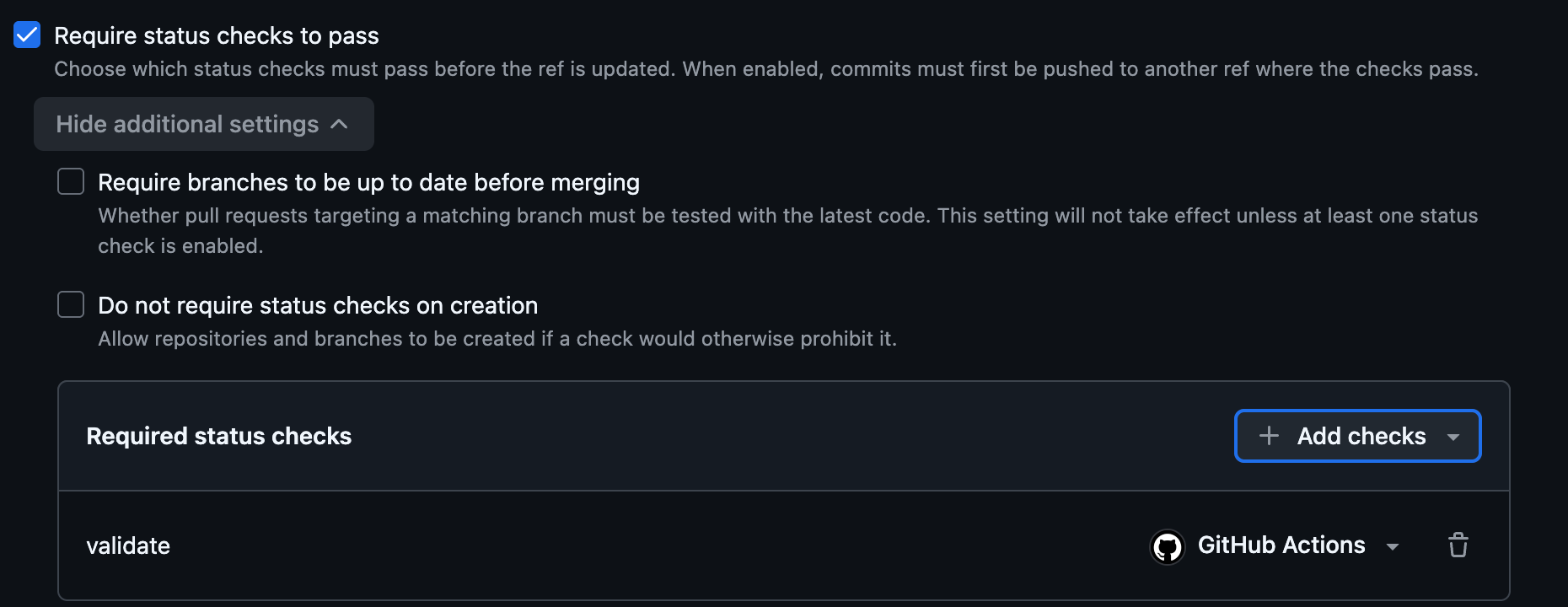
GitHub's rule is that required status checks "must have a successful, skipped, or neutral status" before the merge is allowed.
Once the ruleset is active, a merge request with a red check says Some checks were not successful. The validate check carries a Required label, and the Merge pull request button is greyed out. Any other checks your repository runs are listed beside it.
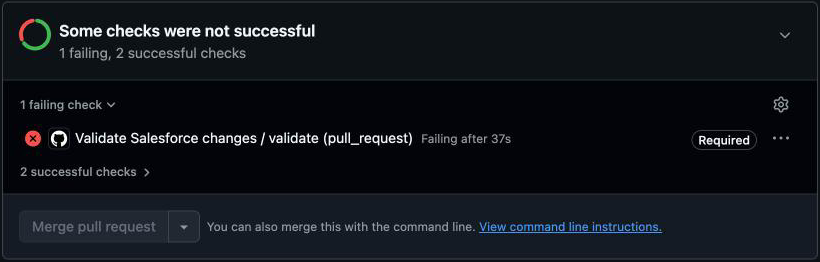
One plan limit to know about: on a private repository, branch rulesets need a paid plan (GitHub Pro, Team or Enterprise). On the Free plan the check still runs and shows on every merge request, but GitHub will not enforce it. Make "no merging with a red check" a team rule until you can.
Reading the Result
- Green check: the merged result would deploy and every local Apex test passed. Review and merge as normal.
- Red cross: click Details, then open the step with the red cross. In the
Validate the changesstep, look forStatus: Failed. Below it, a Component Failures table lists each broken component by Type, Name, Problem and Line:Column, or the Test Results Summary lists the failing tests. When a component fails to compile, no tests run at all. The step ends withProcess completed with exit code 1. - Yellow dot that never finishes: the sandbox is busy, usually with another deployment. Deployments to the same org queue behind each other, so two merge requests pushed at once wait their turn.
Pushing a new commit to the branch runs the check again automatically. You never need to start it by hand. If you want to re-run it without a new commit, open the failed check and click Re-run jobs.
Making It Faster
A check that takes 40 minutes gets ignored. If yours is slow, the usual cause is tests, and you have three options:
- Keep
RunLocalTestsand accept the time. It is the most thorough choice and the right default. --test-level RunSpecifiedTests --tests MyClassTestruns only the tests you name. Fast, but someone has to keep the list right.--test-level RunRelevantTestslets Salesforce choose tests based on what is being deployed. sf CLI marks this level as Beta, so treat it as an experiment and keep a full run somewhere in your process.
The other cost is deploying all of force-app every time. The community plugin sfdx-git-delta (sf sgd source delta) builds a package of only what changed between two commits. Its own README says it is "NOT an officially supported tool", so add it only once the simple version is working and you know you need it.
The Shortcut, and Why Not to Take It
You will find guides that skip the External Client App and store an SFDX auth URL in a GitHub secret instead, then log in with sf org login sfdx-url. You get the URL from an org you already logged into in the browser, with sf org auth show-sfdx-auth-url --target-org my-org --json.
It works, and it is quicker to set up. The catch is in what the URL contains. Its format is force://<clientId>:<clientSecret>:<refreshToken>@<instanceUrl>, and sf CLI's own help warns that it "contains sensitive information, such as a refresh token that can be used to access an org". It is tied to whichever user ran the browser login, often an admin, and it lasts until someone revokes it. Anyone who gets the secret has that user's access.
The JWT setup above takes longer once, and in exchange the runner can only ever log in as one CI user in one validation sandbox, with a certificate you can rotate or revoke in one place.
Troubleshooting
The check never appears on the merge request.
Check the file is at exactly .github/workflows/validate.yml, with the dot, and that the merge request targets main. Then open the Actions tab in your repository: if Actions is disabled for the repository or organisation, nothing runs. A YAML indentation mistake also stops the workflow; the Actions tab shows the error. YAML needs spaces, not tabs.
The required check shows "Expected" and "Waiting for status to be reported", and never runs.
The name in the ruleset does not match the job. The job in the file above is called validate. If you renamed the job, update the required check to match.
"user hasn't approved this consumer"
The CI user is not pre-authorized for the External Client App. On the app's Policies tab, set Permitted Users to Admin approved users are pre-authorized, then add the CI user's permission set under App Policies → Select Permission Sets.
"invalid client identifier" or "client identifier invalid"
SF_CLIENT_ID does not match the app's Consumer Key. Copy it again from the app's settings. Watch for a stray space at the start or end.
"audience is invalid" or a login error mentioning the user
The --instance-url points somewhere other than the sandbox where the app and user live, or SF_USERNAME is the production username without the sandbox suffix. Run the Step 4 command on your machine with the same values to see which.
An error about the key file, or about reading the private key
SF_JWT_KEY is empty, misnamed, or was pasted without its first and last lines. Paste the whole server.key file again, including both ----- lines.
The validate step fails with component errors.
This is the check doing its job. Each line names a component and a problem, such as a field that does not exist. Work through them as in common deploy errors and fixes. If the error refers to something you did not change, the sandbox may have drifted from production; a refresh fixes that, after which you need to recreate the External Client App and CI user (see the FAQ).
Tests fail with "Access to entity ... denied" or "Field is not writeable", but pass when you run them.
The tests run as the CI user, and it has less access than you. Check the CI user's profile is System Administrator, as in Step 1.
The validate step fails on Apex tests you did not touch.
RunLocalTests runs every test in the sandbox that is not part of a managed package, including ones already broken. Run the same tests in the sandbox's Developer Console to see whether they fail without your change. Fix or report a test that was already failing before you rework your branch.
The step ends with exit code 69, or says the deploy is still in progress.
sf CLI stopped waiting before the sandbox finished. Raise --wait in the workflow, or check in the sandbox under Setup → Deployment Status whether another deployment was running at the same time.
It worked for a year, then the login started failing.
The certificate from Step 2 has expired. Create a new key pair, upload the new server.crt to the External Client App, and replace the SF_JWT_KEY secret.
Frequently Asked Questions
Q: Does this deploy anything to my sandbox or to production?
A: No. A dry-run deploy checks and tests everything, then rolls it back. The validation sandbox is unchanged afterwards, and production is never contacted. Deploying stays a separate step.
Q: What happens to the check when I refresh the validation sandbox?
A: A refresh replaces the sandbox's users and setup with a copy of production, so the CI user and the External Client App you created in the sandbox will be gone. Recreate both after each refresh. You can upload the same server.crt, so the SF_JWT_KEY secret stays the same, but the new app has a new Consumer Key: update SF_CLIENT_ID in GitHub. Add the refresh steps to whatever checklist your team already follows after a refresh.
Q: Does this cost anything?
A: On a public repository, GitHub-hosted runners are free. On a private repository, GitHub's Free plan includes a monthly allowance of compute usage, expressed in dollars, and a check like this one uses that allowance for as long as it runs, so slow test runs cost more. Check your repository's Settings → Billing to see your usage. Salesforce charges nothing extra for a dry-run deploy.
Q: We use GitLab or Bitbucket, not GitHub. Does this still apply?
A: The Salesforce half does: the CI user, the certificate, the External Client App and the two sf CLI commands are identical. Only the workflow file changes, to GitLab CI's .gitlab-ci.yml or Bitbucket Pipelines' bitbucket-pipelines.yml, and secrets go in each tool's CI variables.
Q: Can a merge request from someone outside our team see our secrets?
A: Not through this workflow. GitHub's documentation says secrets are not passed to the runner when a workflow is triggered from a forked repository. The check will fail at the login step for those merge requests, which is the safe outcome. Changes from your own team, on branches in the same repository, get the secrets as normal.
Key Takeaways
- An automatic dry-run deploy on every merge request catches broken metadata before it reaches
main, without anyone remembering to run it. - The check validates your branch merged with the latest
main, so it catches problems a diff review cannot see. - In a sandbox, use
sf project deploy start --dry-run --test-level RunLocalTests. Keepsf project deploy validatefor production. - Log in with the JWT bearer flow, an External Client App and a dedicated CI user. Keep the private key only in GitHub secrets and your password manager.
- Make the check required, and diary the certificate's expiry date.
What's Next?
- Resolving Git Merge Conflicts in Salesforce Metadata: the manual dry-run this check replaces, and how to fix the conflicts it catches
- Deploying Salesforce Metadata with sf CLI: reading deploy errors, and the production deploy that comes after a green check
- Deployable Permission Sets for a Delivery Team: how to scope a CI user that deploys to production, where System Administrator is not the right answer
When a check fails and the reason is unclear, this picker walks you from the job log to the fix:
Which step has the red cross?
Start with the step that failed
Open the failed check, then the job. The step with the red cross tells you which half of the problem you have.
Action items:
- Pick or create the validation sandbox, and decide who owns it
- Work through Steps 1 to 4 and get the login working on your own machine first
- Add the workflow on a branch and watch its first run before making it required
- Put a reminder in your calendar 11 months from today to renew the certificate
Resources & References
- sf project deploy start (Salesforce CLI Command Reference)
- Authorize an Org Using the JWT Flow with an External Client App (Salesforce DX Developer Guide)
- Create a Connected App (Salesforce DX Developer Guide), on connected apps being disabled by default
- Install the Salesforce CLI (Salesforce DX Setup Guide)
- Workflow syntax for GitHub Actions (GitHub Docs)
- Using secrets in GitHub Actions (GitHub Docs)
- About protected branches (GitHub Docs)
- GitHub Actions billing (GitHub Docs)
- sfdx-git-delta (GitHub)
Responses
Checking your session.
Loading responses.